How to Recover a Gmail Account: Step-by-Step Guide to Regain Access Quickly and Securely
Learn how to recover a Gmail account step-by-step. Fix forgotten passwords, hacked accounts, and access issues quickly and securely.

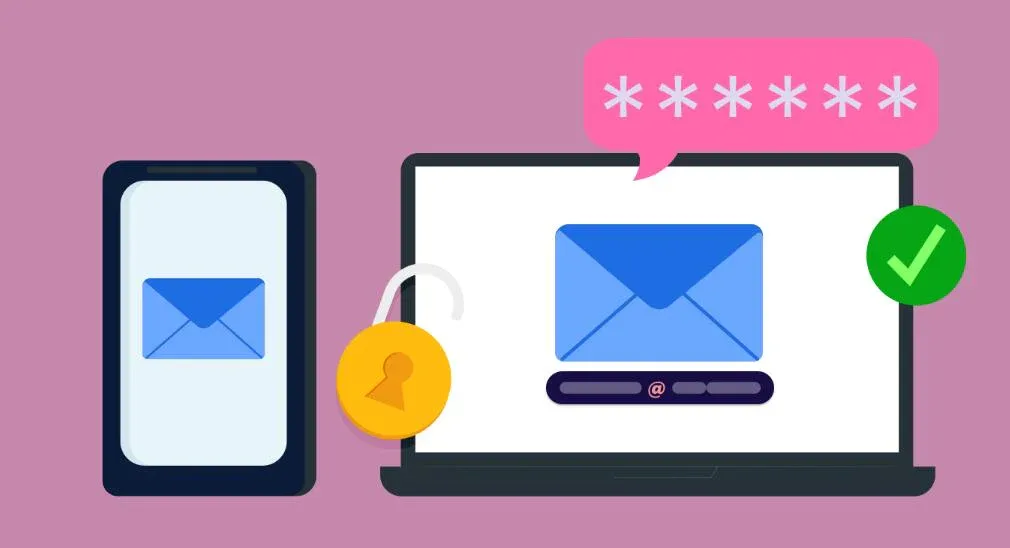
Gmail, developed by Google, is one of the world's most widely used email services, with over 1.8 billion active users globally. Losing access to a Gmail account can have significant consequences for personal communication, professional workflows, and business operations. This guide covers the official methods provided by Google for Gmail account recovery, including scenarios involving forgotten passwords, hacked accounts, missing recovery information, and disabled accounts.
To recover a Gmail account, visit accounts.google.com/signin/recovery, enter your email address, and follow Google's identity verification steps including answering security questions, using a trusted device, or entering a backup code.
What Is Gmail Account Recovery?
Gmail account recovery refers to the process of regaining access to a Google account that has become inaccessible due to forgotten credentials, unauthorized access, or policy-related restrictions. Google provides a centralized recovery system through its Account Recovery page, which uses multiple identity verification methods to authenticate the rightful owner.
Why Gmail Accounts Become Inaccessible
- Forgotten password or username
- Loss of access to the registered phone number or backup email
- Suspicious login activity triggering automated account locks
- Violation of Google's Terms of Service
- Inactivity — Google may disable accounts inactive for more than 2 years
- Two-factor authentication (2FA) device lost or unavailable
Recovery information such as backup email addresses, phone numbers, and security questions are critical components managed through the Google Account Security dashboard. For those managing websites and digital presence, maintaining account security is equally important as maintaining technical SEO health.
Step-by-Step Gmail Account Recovery Process
The following walkthrough covers the standard recovery process using Google's official Account Recovery page.
Step 1: Visit Google Account Recovery
Navigate to accounts.google.com/signin/recovery. Enter the Gmail address associated with the account. If the email address itself is forgotten, click "Find my account" and provide a recovery phone number or email.
Step 2: Verify Your Identity
Google will present one or more verification options depending on the account's security settings:
| Verification Method | When Available | Difficulty |
| Last known password | Always | Low |
| Backup phone (SMS/call) | If number registered | Low |
| Recovery email OTP | If email registered | Low |
| Google Authenticator code | If 2FA enabled | Medium |
| Security question | If set up previously | Medium |
| Trusted device prompt | If previously logged in | Low |
| Backup code (8-digit) | If generated earlier | Low |
Step 3: Reset the Password
Once identity is verified, Google will prompt the user to create a new password. The new password must be at least 8 characters and should differ significantly from previously used passwords. After resetting, sign in across all devices.
Step 4: Review and Secure the Account
After regaining access, immediately visit the Google Account Security Checkup page to review recent activity, connected devices, and active sessions. Remove any unrecognized devices.
How to Recover Gmail Without Phone Number or Recovery Email
One of the most common Gmail recovery challenges occurs when users no longer have access to the registered phone number or backup email address. This situation requires alternative verification methods.
Available Alternatives When Recovery Info Is Lost
- Trusted Device Login: If the account was previously logged in on a computer or phone, Google may send a prompt to that device.
- Previous Password: Entering a password used in the past 180 days may pass verification.
- Account Creation Date: Google may ask when the account was created as an identity check.
- Backup Codes: If 8-digit backup codes were generated and saved previously, they can bypass 2FA.
- Manual Identity Review: In some cases, Google may offer a manual review process where it sends a verification link to a newly specified email address after a waiting period.
This is analogous to complex problem-solving in SEO diagnostics — when the standard path is unavailable, alternative data points must be leveraged. Google's system scores each answer to determine whether sufficient trust has been established.
How to Recover a Hacked Gmail Account
A hacked Gmail account is one in which an unauthorized party has gained access, potentially changing recovery information to lock out the legitimate owner.
Signs That Your Gmail Account Has Been Hacked
- Password no longer works despite no recent changes
- Recovery phone or email has been changed without authorization
- Unfamiliar sent emails or purchases in linked accounts
- Google security alerts arriving at a backup address
- Contacts reporting unusual emails from your account
Immediate Steps to Recover a Hacked Account
1. Use Google Account Recovery immediately: Visit accounts.google.com/signin/recovery before the attacker removes all recovery options.
2. Check Google's Security Checkup: Once access is restored, visit myaccount.google.com/security to review all active sessions and sign out of unrecognized devices.
3. Revoke access to suspicious apps: Third-party apps with account access can be managed at myaccount.google.com/permissions.
4. Enable 2-Step Verification: Immediately set up Google Authenticator or a hardware security key to prevent future breaches.
5. Update recovery information: Replace any compromised phone numbers or backup emails with valid, secure ones.
Much like recovering from a negative SEO attack, hacked account recovery requires acting quickly, auditing all access points, and reinforcing security infrastructure to prevent recurrence.
Can You Recover a Deleted Gmail Account?
When a Gmail account is deleted — either by the user or by Google — recovery depends on the time elapsed and the circumstances of deletion.
Recovery Time Window
- Within a few weeks: Google may allow recovery. Visit accounts.google.com/signin/recovery and follow standard steps.
- After extended time: Gmail data (emails, contacts, Drive files) is permanently deleted and cannot be restored.
- Workspace accounts: Google Workspace administrators may be able to restore deleted user accounts within 20 days via the Admin console.
It is important to note that Google's deletion policy means that once the grace period passes, no official recovery pathway exists. This underscores the importance of maintaining account security proactively.
Gmail Account Disabled by Google: Causes and Appeals
Google may disable a Gmail account for reasons distinct from a forgotten password or hack. Understanding the cause determines the appropriate resolution path.
Common Reasons for Account Disabling
- Policy violations: Sending spam, distributing malware, or violating Google's Terms of Service.
- Suspicious activity detection: Automated systems flagging unusual login patterns or mass email sending.
- Age restrictions: Accounts created by users under 13 may be disabled in compliance with COPPA regulations.
- Inactivity: Accounts unused for more than 2 years may be subject to Google's inactive account policy.
How to Appeal a Disabled Account
Google provides an appeal form at accounts.google.com/disabled. Users can submit their contact information and explain why they believe the account was disabled in error. Google's review team evaluates each case individually. Appeal decisions are typically communicated within 2–7 business days.
Common Gmail Recovery Problems and Fixes
Users frequently encounter specific error messages during the recovery process. The following table outlines the most common issues and their resolutions.
| Problem | Solution |
| "Google couldn't verify this account belongs to you" | Use a trusted device, try a previously used password, or wait 24–48 hours before reattempting from a familiar location. |
| Recovery code not working | Ensure the code has not expired (SMS codes expire in 10 minutes). Request a new code or use an alternative method. |
| Too many failed attempts | Google locks recovery for a period after multiple failures. Wait 24 hours before trying again. |
| Verification failed | Ensure browser cookies are enabled, try a different browser or incognito mode, and verify network connection stability. |
| Phone number no longer in service | Use backup codes, trusted device prompt, or previously used passwords. |
These troubleshooting strategies mirror the approach used in technical SEO problem-solving, where diagnosing the root cause is essential before applying a fix.
Security Best Practices After Gmail Account Recovery
Once access has been restored, implementing a strong security posture prevents future incidents. The following practices are recommended by Google:
Enable 2-Step Verification (2SV)
2-Step Verification adds a second layer of authentication beyond the password. Options include Google Authenticator, SMS codes, hardware security keys (FIDO2), and Google prompts on trusted devices. This is the single most effective measure to prevent unauthorized access.
Update Recovery Information
Ensure the registered recovery phone number and backup email address are current and under your control. Visit myaccount.google.com/security to update these details.
Review Account Activity Regularly
Use the "Last account activity" feature at the bottom of the Gmail inbox to view recent sign-ins. Any unrecognized location or device should trigger an immediate password change.
Remove Unauthorized Third-Party App Access
Third-party applications connected to a Google account can retain access even after a password change. Review and revoke permissions at myaccount.google.com/permissions for all unrecognized apps.
Generate and Store Backup Codes
Google allows users to generate 10 single-use backup codes at myaccount.google.com/two-step-verification. Store these in a secure, offline location such as a password manager or printed document.
Why Choose Sadekur Rahman for Digital Guidance?
Sadekur Rahman is a professional SEO Specialist in Bangladesh with extensive experience helping businesses improve their online visibility and digital security posture. From managing technical SEO issues to providing authoritative guides on digital tools, the goal is to empower users with actionable, accurate information.
Explore comprehensive SEO services, local SEO solutions, and content writing services designed to drive organic growth. Ready to grow? Book a meeting today.
Frequently Asked Questions (FAQ)
1. Can I recover my Gmail account without my phone number?
Yes. Google offers alternative verification methods including entering a previously used password, using a trusted device that was signed in, or providing backup codes. The feasibility depends on the account's security history.
2. How long does Gmail account recovery take?
Standard recovery is instant upon successful verification. If a manual identity review is required — common when all recovery options are unavailable — it may take between 3–7 business days.
3. What should I do immediately after recovering a hacked Gmail?
Reset the password, enable 2-Step Verification, review all active sessions, revoke suspicious third-party app access, and update recovery phone and email immediately.
4. Is it possible to recover a permanently deleted Gmail account?
If the account was deleted recently (within a few weeks), recovery may be possible. After the grace period, Gmail data is permanently purged from Google's servers and cannot be restored through any official channel.
5. Why does Google say it can't verify my account?
This error appears when Google's system cannot establish sufficient trust that the person attempting recovery is the legitimate owner. This typically happens when the account has little recovery history, no trusted devices, and no backup contact information.
6. Can someone else help me recover my Gmail account?
Only Google can facilitate official account recovery. No third-party service can recover a Gmail account — any service claiming otherwise is likely a scam. Workspace administrators can restore accounts within their domain.
7. How do I recover a Gmail account if I forgot the email address?
Use the Find My Account tool at Google's sign-in page. Enter a recovery phone number or email address that was associated with the account to retrieve the username.
8. What happens if I enter the wrong information too many times during recovery?
Google temporarily locks the recovery process after multiple failed attempts to prevent brute-force attacks. Users should wait at least 24 hours before attempting again, and ideally try from a familiar device and location.
9. Does enabling 2-Step Verification prevent account recovery?
No. Google provides backup codes specifically to ensure recovery remains possible even when the 2FA device is unavailable. It is important to save these codes in a secure location when setting up 2FA.
10. Can I recover a Gmail account that Google disabled?
Depending on the reason for disabling, users may submit an appeal through Google's disabled account appeal form. If the account was disabled for a Terms of Service violation, recovery is not guaranteed and depends on Google's review outcome.
External References & Authoritative Sources
Google Account Recovery (Official) | Google Account Help Center | Wikipedia – Gmail
Related Internal Resources: SEO Basics | Technical SEO Guide | Content Writing Services | Case Studies | SEO Expert in Dhaka | Book a Meeting

Written by Sadekur Rahman
SEO & Website Strategy Specialist at Pixelvega and SEO Executive at Daily Amar Desh. 6+ years helping brands grow with data-driven SEO.